Viewing a Work Package
As a vendor on Collegium, you have access to all the information you need to place a competitive bid on a work package.
The Work Package Overview Tab
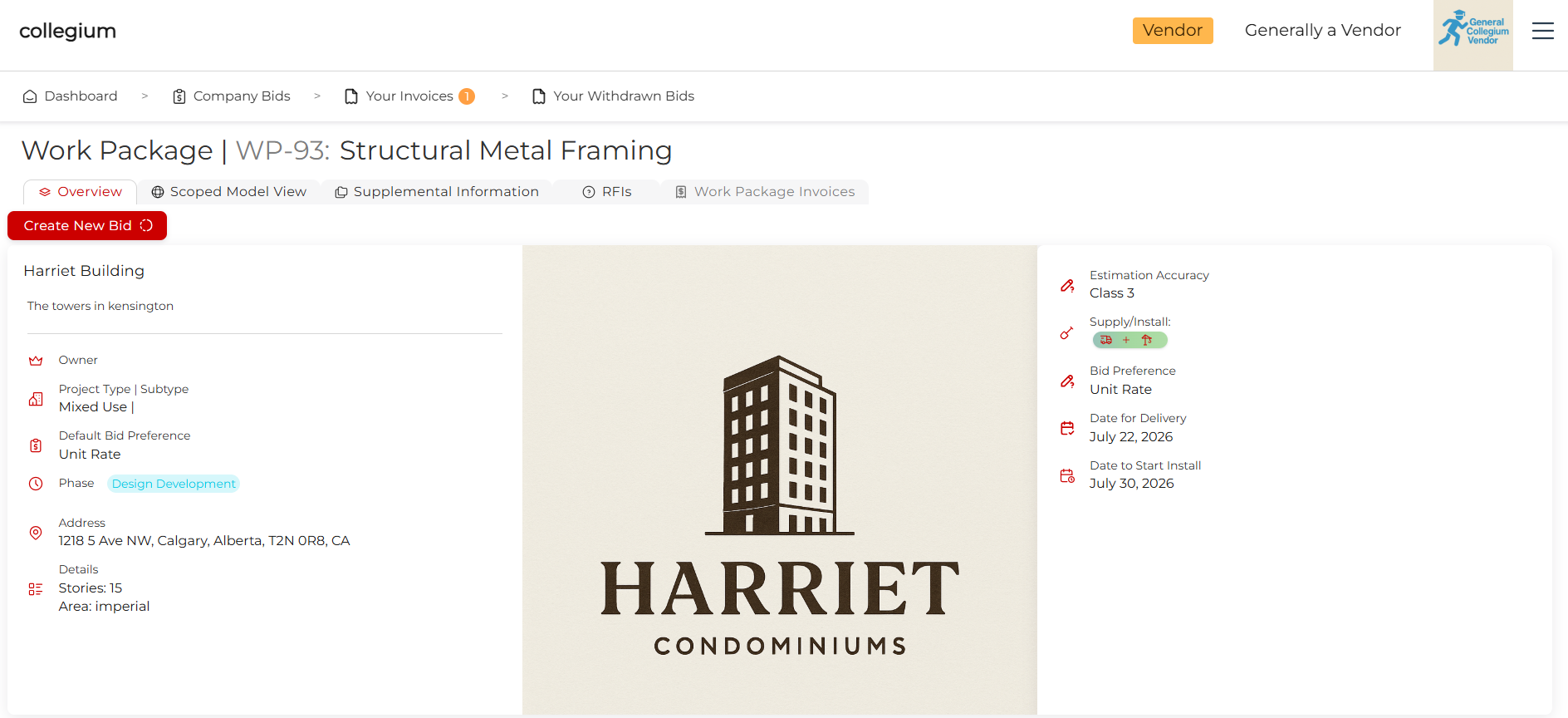
After clicking View on one of the various work package tables accessible to you, you are taken to the overview tab. This gives a brief overview of the project, like address, the kinds of bids accepted, rough fulfillment dates etc.
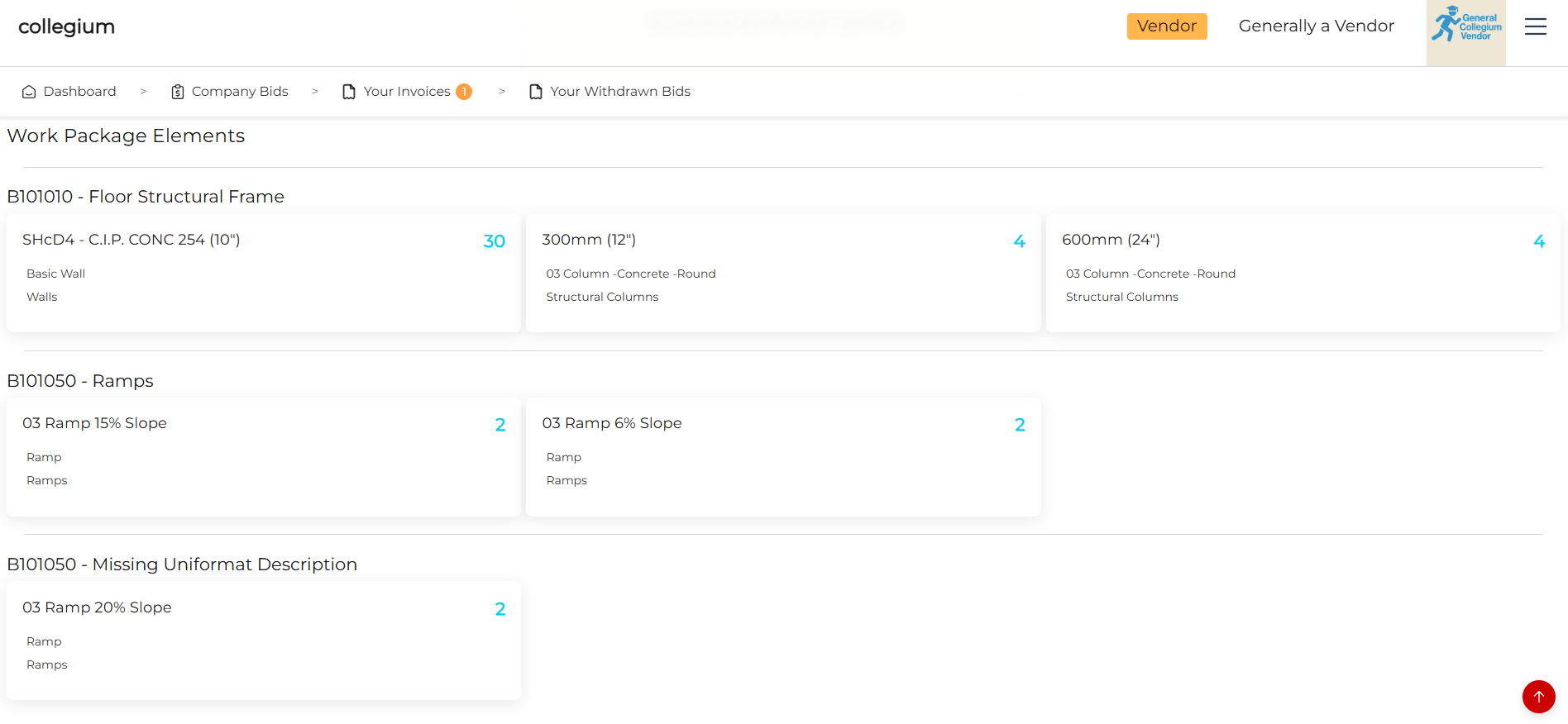
Scrolling down, you get a brief overview of the model elements in the work package.
Scoped Model View
Here you can interact with the model view. This is the Building Information Model (BIM) that Collegium queries to get the quantities of materials to build the project. You can click, drag, zoom, and inspect all elements in the model to help you better price your bid. In the table, the model elements grouped into this work package are listed. You can click on any one, and the model view will react, and zoom in to focus on that element. Clicking the ghosting button toggles the rest of the model, so you can see the context of the work package.
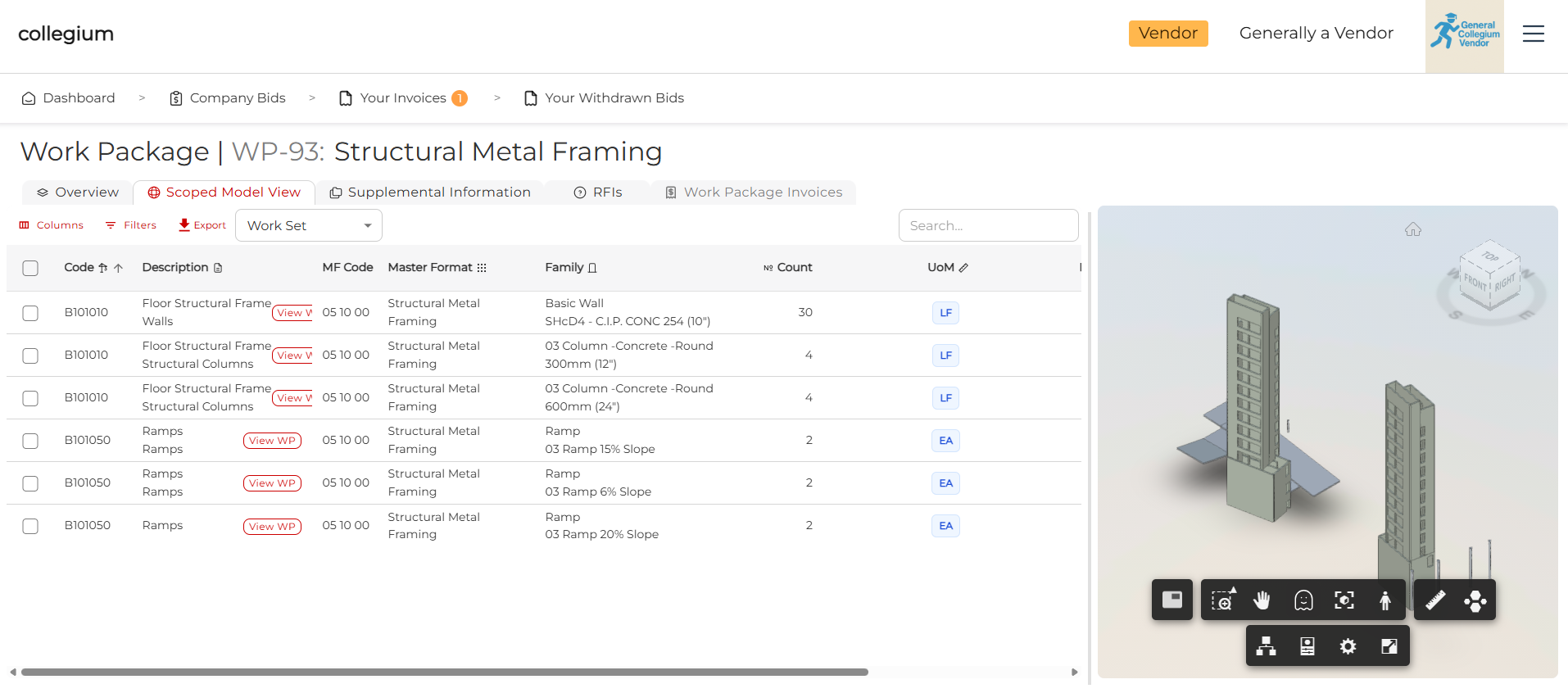
There is more data here, you can click the Columns filter button and select which columns you want to see, including Show All. Obviously there is a lot of data here, so select what matters most to you.
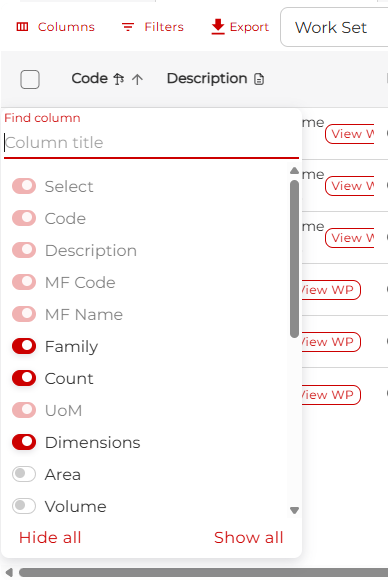
The Export button saves a CSV (Comma-separated Values) file of all the data for the model elements, which can be opened and worked with in your favourite spreadsheet package. You can also filter the data using the Work Set dropdown, or typing into the search text box.
Supplemental Information
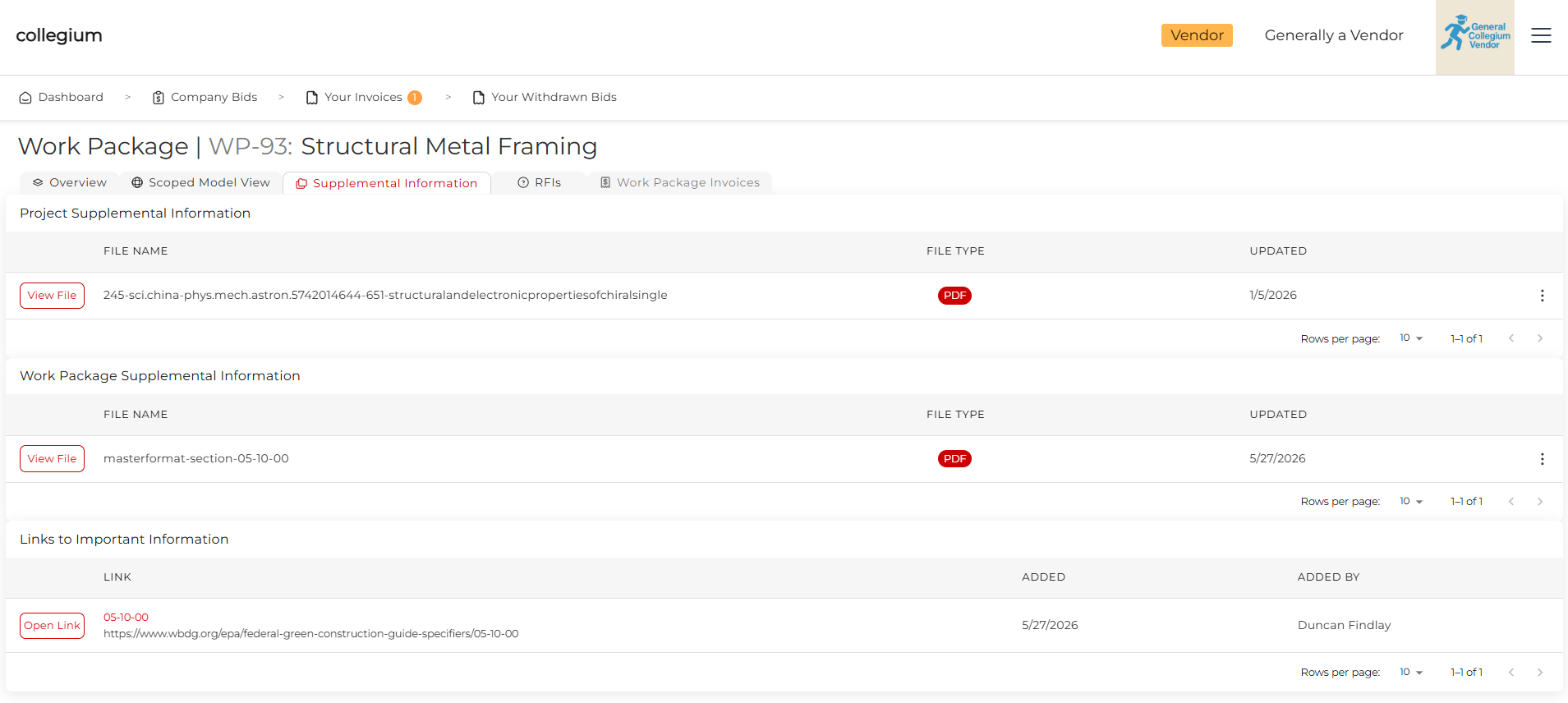
This lists other information associated with the work package, but also the project. Click View File and Open Link to view documents and web pages containing the precise specifications of the work package.
Request For Information
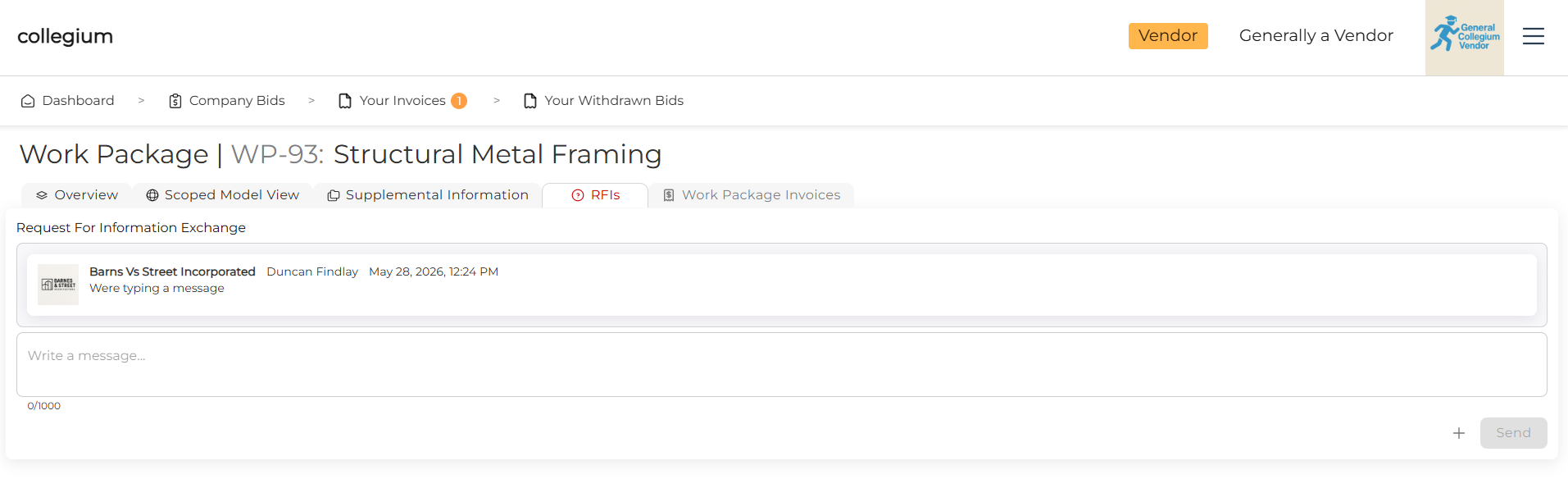
Here you can ask questions, post links, and upload files to share clarity on the requirements of the work package. This is on the work package level, so the messages are visible to everyone who can bid, as well as the work package owner. Type into the text box and either press enter or click Send to post the message. You can also click the plus button to upload documents.
Work Package Invoices
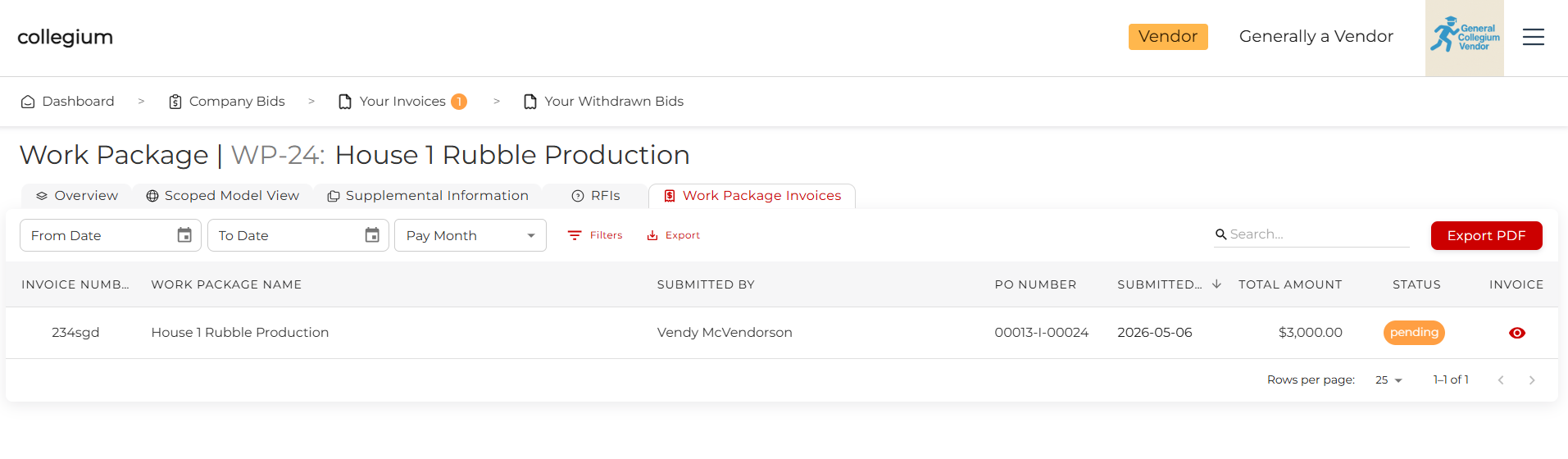
Here we have a version of the invoice table, scoped to this work package. Click the eye icon to view the actual submitted invoice. You can filter the dates either by the start and end date, or selecting a month from the drop down. You can export a CSV, search by typing into the text box, or click Export PDF to export one large PDF containing the data in the table along with the actual invoices submitted.